
Uncategorized
Casino Kingdom site Log in and Gamble on Every Internet browser for German players
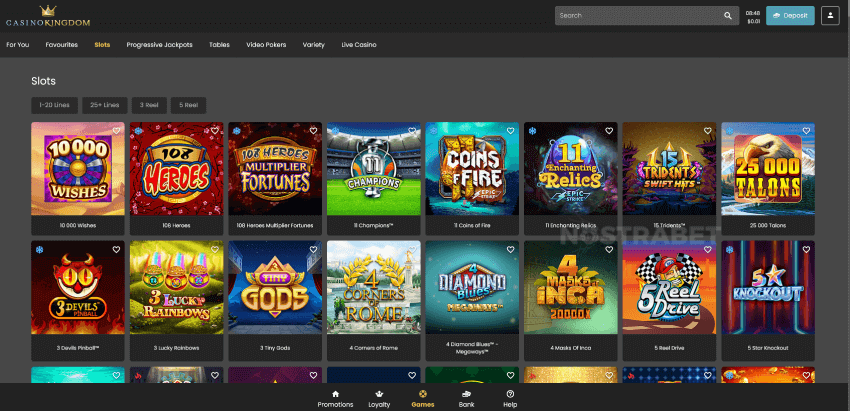
Accessing Casino Kingdom from Germany necessitates a complete grasp of the registration and login process so you can go from starting click to verified play without needless hold-ups. This article walks through the specific stages, mandatory files, and safety tools that apply particularly to gamblers based in Germany, covering how to recover passwords, turn on 2FA, and handle common verification delays that users in Germany face.
Confirming Eligibility Prior to You Start
German residents are required to meet both the legal age requirement and the platform’s own residency rules before they can create an account. Casino Kingdom admits players who are at least 18 years old, but German state regulations require proof of identity that matches the address on file. If you hold dual citizenship or recently moved within the EU, provide both your German identity card and a secondary proof of address such as a utility bill no older than three months. Players living in Schleswig-Holstein have to verify that the chosen game categories are permitted under the state’s interstate treaty; outside that state, the same verification documents apply but licensing checks differ. Before entering any personal data, access the registration page in a private browser window and confirm that the domain address begins with “https://” and displays the padlock icon, ensuring the connection is encrypted from the first keystroke.
Enabling Two-Factor Authentication for Extra Security
Two-factor authentication introduces a six-digit time-based code created by an authenticator app to each login attempt. To activate it, navigate to the “Security” section in your verified account, pick “Enable 2FA,” and read the displayed QR code with any TOTP-compatible app like Google Authenticator or Authy. The system immediately asks you to input a current code from the app to validate correct setup. Once activated, each login from a new IP address or browser prompts an additional challenge for the six-digit code, which changes every thirty seconds. If you misplace access to your authenticator device, utilize one of the ten single-use backup codes produced at setup; these codes are shown only once, so save them offline in a secure location. Deactivating 2FA later needs both your current password and a valid code from the app, blocking unauthorised deactivation by anyone who obtains your login credentials alone.
Signing In Using Different Browsers

Once authenticated, you can access your account from any modern browser on a PC, tablet, or smartphone without downloading additional software. The login page asks for the username or registered email address plus the password you set up during registration. If you opt not to type long passwords on a mobile keyboard, turn on browser password managers that save credentials behind biometric authentication such as fingerprint or face recognition. Casino Kingdom’s site uses responsive design, so the same URL shows identical features on Chrome, Firefox, Safari, or Edge; however, cached images occasionally cause display issues after a software update. Clearing the browser cache and cookies for the domain casinokingdoms.net resolves most formatting errors. For users who switch devices frequently, checking the “Remember this device” checkbox during login limits repeated two-factor prompts while still upholding security standards.
Restoring a Forgotten Password
Password recovery begins on the login screen by pressing the “Forgot password?” link, which displays a form requiring the email address connected with the account. After submitting, Casino Kingdom sends a time-limited reset link that runs out after two hours; if you do not see the message, look in the spam folder and ensure the address no-reply@casinokingdoms.net is placed to your safe-sender list. Once you open the link you are prompted to create a new password that must differ from the previous five passwords stored in the system. If you no longer have access to the original email address, get in touch with live chat support and supply the account username plus answers to three security questions chosen during registration. Support agents can issue a manual reset only after you complete an abbreviated verification step that requires sending a fresh photo of your ID taken at the moment of the chat. This process usually takes fifteen minutes when performed during European business hours.

Providing Documents for Personal Verification
Identity check at Casino Kingdom adheres to the standard Know-Your-Customer process demanded under German money-laundering regulations. You need to supply a government-issued photo ID such as a Personalausweis, Reisepass, or EU driving licence that clearly displays your full name, photograph, date of birth, and expiry date. In addition, the platform asks for a proof-of-address document generated within the last three months; acceptable documents include a utility bill, bank statement, or official rental contract that lists both your name and the exact address entered during registration. All documents have to be in colour, show all four edges of the page, and feature legible text without glare or shadow. If your name has changed due to marriage or legal deed, attach the corresponding certificate so the verification team can connect the documents. Once uploaded, the system produces a ticket number that you can reference when contacting support; typical processing time for complete applications from Germany is one business day, although complex cases involving name discrepancies can extend to three days.
Step-by-Step Account Creation
The account setup on Casino Kingdom comprises four sequential screens that gather personal data, create login credentials, and require initial verification documents. On the opening screen you enter your full legal name precisely as ndr.de shown on your passport or Personalausweis, your date of birth, and your current German residential address including postcode. The following screen requests a unique username, a strong password with at least twelve characters with mixed case and symbols, and a valid email address that you manage. After providing these details you obtain an automated message with a six-digit confirmation code; entering this code on the third screen enables the account but places it in a “pending verification” status. The final screen immediately offers an upload area where you can submit a clear photograph or scan of your government-issued photo ID and a up-to-date proof-of-address document. Completing these uploads within the initial hour after registration often cuts the verification timeline from forty-eight hours to under twenty-four hours.
Troubleshooting Typical Authentication and Verification Problems
Most sign-in issues fall into three groups: invalid username/password, browser issues, or temporary account locks due to repeated wrong entries. In case the interface states that your password is wrong, first check that the Caps Lock key is disabled and that you are using the exact username or e-mail registered; subsequently attempt the password-reset flow instead of repeatedly guessing. Problems with the browser commonly show up as a blank login button or endless loading spinner; changing from a Virtual Private Network to a German IP directly or deactivating browser extensions that block scripts typically brings back normal operation in under a minute. Verification delays exceeding 72 hours are usually caused by blurry images or incorrect address information; under these circumstances, reach out to support through the in-app messaging and request a manual review while keeping the case ID available. In the event that your account becomes locked following five failed sign-in tries, hold 30 minutes until trying again or employ the password-recovery option to trigger an immediate unlock as soon as your identity is verified again. Keeping a printed or encrypted note of your username, email on file, and the ending four digits of your identity check reference stops most of these interruptions from escalating into extended access difficulties.
